Quick wins for a faster PC:
Fix the driver behind crashes, sound loss and screen glitchesFind Drivers →Repair Windows errors before they cause bigger problemsFix Now →Scan for outdated or missing drivers - takes under a minuteDriver Scan →The Geeks Club is reader-supported. When you buy through links on our site, we may earn an affiliate commission. As an Amazon Associate I earn from qualifying purchases. Learn more
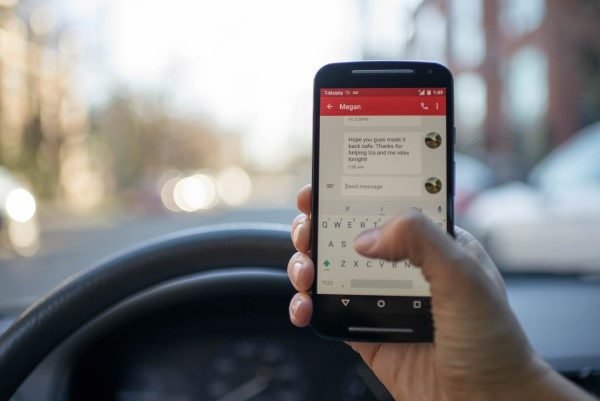
Are you tired of deleting messages so that others can’t see them? Are you worried that while you are at school or on campus, your professor or even a classmate will see notifications from EssayService and know that you use an essay writing service to get help with your assignments, and it will make you fail your exam or even the whole course? Well, if your phone is easily accessible to others, then hiding messages altogether is a better way to secure them. Therefore, we are here with a simple guide on how to hide text messages on Android.
How to hide text messages on Android
Deleting a text message is not a solution. You may have to refer back to them later. So follow these solutions to hide essential SMS on your Android phone.
- Archive text messages
- Hide pop-up notifications and Messages Preview on Lockscreen
- Use Go SMS Pro
- Use Private Message Box
Below are some simple methods circling useful tools using which you can make text messages private on Android smartphones.
1] Archive text messages

If you don’t want to install any third party apps but still want to hide messages, then archiving them would be the most feasible option. You can archive text messages on your Android messaging app by following the steps below:
Shopping ad

- Compatible Model: Specifically Designed for BLU View 5, Please double check your device model before purchasing
- Privacy Protection: Screen is only visible to persons directly in front of screen, Keep your information safe and prevent others from viewing the information by looking over
- Superior Quality: 0.33mm ultra-thin tempered glass, Highly durable, and scratch resistant, surface hardness 9H and topped with oleophobic coating to reduce fingerprints
- Case Friendly: Compatible with most mobile phone cases on the market, Extra space is left around the borders for your case to wrap around the edges of your phone
- Bencuku provides you a friendly customer service, Please email us by Via Amazon message System for any questions
Hide Text messages
- Open the Messages app on your Android.
- Now, tap and hold the conversation you want to hide. A list of options will appear on top of the screen.
- Click on the first icon in the row that resembles a folder with a downward pointing arrow. The selected conversation will now be moved to the archive.
To view hidden text messages
Tap on the three dots present on the top right corner of the screen. After that, select Archived. You’ll be able to see all the messages, hidden from the default conversation window.
To un-hide text messages
Go to the archive section. Select the text messages you want to unhide and tap the unarchive icon (folder with an upward pointing arrow). The selected texts will be moved to the default conversation list.
Shopping ad

- Compatible Model: Specifically Designed for Samsung Galaxy A12, A13, A32, A03s, A02s, A42. Please double check your device model before purchasing
- Privacy Protection: Screen is only visible to persons directly in front of screen, Keep your information safe and prevent others from viewing the information by looking over
- Superior Quality: 0.33mm ultra-thin tempered glass, Highly durable, and scratch resistant, surface hardness 9H and topped with oleophobic coating to reduce fingerprints
- Case Friendly: Compatible with most mobile phone cases on the market, Extra space is left around the borders for your case to wrap around the edges of your phone
- HPTech is committed to provide 100% customer satisfaction, Please email us by Via Amazon message System for any questions
2] Hide Pop-up notifications and Messages Preview on Lockscreen
Your friends and family can easily read your text messages if they’re visible on the lockscreen while you’re away. Furthermore, at times, you might face embarrassment in situations when you’re using your phone in front of someone and suddenly a private message pops-up on the screen.
What’s actually slowing this PC down?
Pick the symptom - the matching free tool is one click away.
Hide text messages on the Android lock screen

- Open your Android Settings
- Go to the Privacy section.
- Look for the option that says On lock screen. Tap it, and select Hide sensitive content.
- If you’re running previous Android versions, go to Security & Location under settings.
- Tap on the Lock screen preferences under the Device security section.
- Now, click On lock screen and select Hide sensitive content.
It will hide the message preview on lockscreen, and nobody will be able to read your private texts without unlocking your phone.
Shopping ad

- Compatible Model: Specifically Designed for Samsung Galaxy S26. Please double check your device model before purchasing
- Privacy Protection: Screen is only visible to persons directly in front of screen, Keep your information safe and prevent others from viewing the information by looking over
- Superior Quality: 0.33mm ultra-thin tempered glass, Highly durable, and scratch resistant, surface hardness 9H and topped with oleophobic coating to reduce fingerprints
- Case Friendly: Compatible with most mobile phone cases on the market, Extra space is left around the borders for your case to wrap around the edges of your phone
- Bencuku is committed to provide 100% customer satisfaction, Please email us by Via Amazon message System for any questions
Disable pop-up notifications on screen

- Open Settings on your Android and navigate to Apps and Notification section.
- Tap on See all apps
- Then select your default messaging app or any app for which you’d like to disable heads-up notifications.
- Click on the app.
- You’ll be redirected to App info page. Tapping on Notifications will take you to the notification settings.
- Tap the gear icon beside each notification category
- Flick the Pop On Screen slider off to disable pop-up notifications on screen.
It will save you from embarrassing situations of messages being read by others while you’re showing them something.
3] Hide text messages using Go SMS Pro
Go SMS Pro is an excellent alternative to your default messaging app that allows a dedicated Private Box for storing private text messages, apparently hiding them from people prying into your phone.
Shopping ad

- 1. [Compatible Models] - 3 Pack privacy screen protectors for Samsung Galaxy A53, Not suitable for other models. Please check your phone model before purchasing.
- 2. [High Privacy Protection] - The Bigflyants tempered glass privacy screen protector for Samsung Galaxy A53 / A52 / A51 will keep all your personal information away from the eyes of strangers around you, effectively protecting your personal privacy in public places. PS: The privacy film is not suitable for fingerprint unlocking.
- 3. [9H Tempered Glass and Anti-drop] - The Samsung Galaxy A53 / A52 / A51 tempered glass privacy screen protector is made of high-quality 9H hardness tempered glass, adding much-needed extra protection layer to give you peace of mind. It provides maximum drop protection, preventing scratches and daily wear and tear.
- 4. [High Quality and Full Coverage] - The 9H hardness tempered glass film has a scratch-resistant surface that perfectly protects the screen from daily wear and tear or accidental drops. Precise speaker cutouts maximize coverage on the edges of the screen while providing full-screen coverage protection while maintaining high-level protection for front cameras and sensors.
- 5. [After-Sale Guarantee] Package Includes: 3 Pack Samsung Galaxy A53 / A52 / A51 privacy screen protector and cleaning kits. Backed by Bigflyants provide free replacement warranty and 100% satisfaction guarantee. If any questions or doubts, please contact us freely, we will be at your service in 24/7.

- Install Go SMS Pro from the Google Play Store and open it.
- Follow the on-screen prompts to set Go SMS Pro as the default messaging app on your device.
- Once you’re into the app, long press the message, you’d like to hide from default conversation screen.
- You’ll get a list of options in the bottom part of the screen.
- Tap the More button, i.e., three dots and select Move to Private Box option.
- A tip dialog box will appear with an Initialize button. Press the same.
- Choose a 4-digit password and confirm.
- Now, go back to the app homescreen and repeat Steps 3 and 4.
- A dialog box will appear, press Confirm to move the thread into the private box.
You can access the Private Mode later using the option under the right-most tab with a man icon. You can also rename the option, change the passcode, set custom notifications, or hide the option altogether and use a gesture instead.
4] Hide text messages using Private Message Box: Hide SMS
Private Message Box is a straightforward and efficient app to hide text messages on Android. Using it, you can hide SMS, MMS, and call logs of secret contacts behind PIN vault. Additionally, the app offers features like auto-backup, image, audio and location sharing, timeout, privacy guard, and password protection. It provides a hidden mail box with no app icon and hence cannot be seen or opened by other people.
Shopping ad

- 【Compatible with Samsung Galaxy s24 Ultra】Include 2 Pack Tempered Glass Privacy Screen Protector for Galaxy S24 Ultra【Support Finger Print Unlock】. Please check your phone model before purchase.
- 【Privacy Protection】 Privacy glass screen is only visible to person who is directly in front of Screen. Protect your personal privacy effectively.
- 【Case Friendly】Compatible with most mobile phone cases.
- 【Easy Installation】 A handy installation tray is provided for your easy quick installation, not easy to fall off, no bubbles.
- 【Superior Quality】9H hardness privacy screen protector resists accidental drops and impacts. Light transmittance of 99.9%, maintain original touch experience and HD screen.
To hide messages in Private Message Box:

- Install Private Message Box from the Google Play Store and set it up.
- A prompt will appear asking you to set a PIN. The PIN will act as a key to open the app.
- Do as directed and confirm.
- You’ll be asked whether if you want to enable the hide icon mode.
- You can either enable it or skip by tapping enable it later.
- Follow the on-screen instructions. You’ll now be asked to verify the phone number or skip the step or buy yourself a virtual number.
- Once everything is set, open the Messages tab.
- Press on the Add Contact icon in the bottom right corner of the screen.
- Enter the person’s name and number with whom you want to have private conversations.
- You can also import it from received messages or existing contacts using the Import button.
As soon as you’re done with adding contacts into the list, all of their SMS will be moved to the private vault. You can now select the contact and tap Start Conversation.
All of your chats are now confidential in the Private Message box and won’t appear in your Messaging app.
Independent reader supportYour contribution helps us test, update, and keep practical guides available for everyone.Conclusion
So these were some simple methods using which you can hide text messages on your Android. You can use archive option, hide lock screen previews, and pop-up notification for necessary privacy protection from others. Nonetheless, you can also opt for a full-fledged vault using the apps mentioned above. If you’re looking for best secure messenger apps for Android, then do check out this article. That said, do let us know what worked best for you. Also, feel free to reach us via comments in case of any queries.
Windows Errors? Fix Them Before They Spread
Repair common Windows errors and clear accumulated junk for a smoother, more stable PC - no reinstall needed.Free scan · no reinstallOutdated Drivers Are Slowing You Down
One free scan finds every outdated or missing driver and matches the right update for your exact hardware.Free scan · exact hardware matchQuick Recap
Product prices and availability are accurate as of the date/time indicated and are subject to change. Any price and availability information displayed on Amazon at the time of purchase will apply.

