Quick wins for a faster PC:
Scan for outdated or missing drivers - takes under a minuteDriver Scan →Repair Windows errors before they cause bigger problemsFix Now →The Geeks Club is reader-supported. When you buy through links on our site, we may earn an affiliate commission. As an Amazon Associate I earn from qualifying purchases. Learn more
Websites can now show notifications via the browsers on your PC or smartphones with your prior permission. So, most websites, especially blogs or news portals usually prompt the pop-up seeking the approval to show the notifications to push the latest updates. You can either stop websites from asking to show notifications or keep it turned on.
But getting the request to allow the notification access frequently must be annoying. However, it is not quite difficult to revoke the website’s access to show the popup asking for their permission to display the notifications. Let’s learn how to turn off Chrome or Firefox notifications windows 10.
How to stop websites from asking to show notifications
As the push notification feature depends on the browser the site runs, we need to work it out in accordance with the browser type. You can easily get rid of the vexatious notification permission popup on any browser. Despite removing the websites notifications on PC, you can do the same on smartphones too.
Recommended Free Tools
Google Chrome
On PC:
- Open Google Chrome Browser on your desktop.
- Go to Settings by entering “chrome://settings” on the address bar.
- Scroll down and click “Advanced.”
- Under the Privacy and Security category, you can see several settings related to the privacy concerns while visiting any websites.
- Among them, click on “Content Settings.”
- Select “Notifications” where you can see a list of websites and a toggle button.
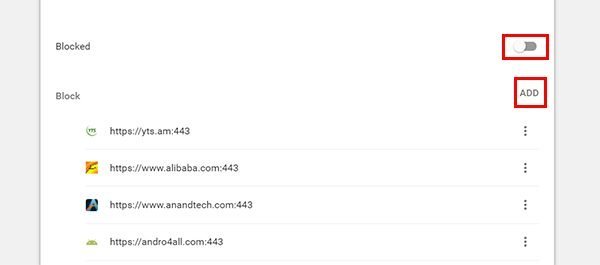
- You can notice the toggle button shows the message “Ask before sending (recommended).” Tap it to block every notification permission settings. After you turn it off, you will no longer receive any request to turn on notifications for websites.
- If you only want to block the settings for specific websites, let the notifications be turned on. But go below and Click on “ADD” nearby the Blocked section. You can either remove any website or add any to the blacklist.
On Smartphones:
- Open Google Chrome App.
- Tap on Ellipsis icon at the top right corner and go to settings.
- From the settings home, select the “Site Settings,” and you can block the Notifications from there instantly.
Mozilla Firefox
- Open Mozilla Firefox Browser on PC.
- Choose Menu icon > Options > Privacy & Security.
- Tap on the Settings button to go the notification settings.
- You can see the notification allowed websites lost from there. You can either remove them, add any website to the whitelist.

- If you want to block any websites to ask for the notification permission requests, you need to check the checkbox near to “Block new requests asking to allow notifications.”
- Click on “Save Changes,” and you are done.
Opera
- Open the Opera Browser.
- Click on the Opera Icon at the top left corner > Tap on Settings.
- From the settings window, click on the “Websites” settings from the left panel.
- Now you can scroll down the window until you see the “Notifications” option.

- There are three options allowed, that you can prefer two the notifications must be shown on your browser from websites. Choose the “Do not allow any site to show desktop notifications” radio button to turn off all notifications.
Microsoft Edge
Microsoft’s lightweight, efficient browser Microsoft Edge comes with the support to show the notifications by websites. Currently, the browser does not have any native options to disable the notifications wholly from every website. However, you can disable the notification permission from the popup banner while visiting any site.
If you want to revoke the notification permission of an allowed website, follow the steps.
Shopping ad

- Take Back Control of Your Screen - It is a physical device that temporarily removes distracting apps and their notifications from your phone by creating real world friction. Once you connect it to your phone via Bluetooth, you can simply click the button remotely to return your phone to the home screen, at which point you won’t be able to open any apps.
- Effortless Control - Bluetooth blocker button is subscription-free. No need for complicated app installations or setup—it’s simple and hassle-free. Just connect this compact physical button to your phone via Bluetooth, freeing up more time for what really matters.
- Start Your Focus Ritual Now - With a simple tap, activates your focus mode via button. Distractions disappear and your attention anchors in. The ritual is seamless, intentional, and designed to bypass the willpower drain of traditional brick or jail phone blockers. Perfect for professionals, students, and creators craving uninterrupted deep work. One tool, one tap, and your attention back.
- Physical Focus, Reclaimed Power - Reclaim mornings lost to social media, evenings stolen by feeds, conversations interrupted by notifications. It is your independence from digital dependence. Be fully present in conversations that matter, without the phantom buzz pulling your attention away. Build lasting habits that stick, transforming screen time into progress toward your real goals.
- Wireless Connectivity - Built-in Bluetooth 5.2 tech, the wireless button provides a more stable and faster connection. Connect the control to your smartphone (iOS/Android), you can remotely control your phone screen from up to 65ft/20m away. In this state, you can answer incoming calls but cannot make outgoing calls.
- Open Edge and go to Settings > View Advanced Settings.
- Under the “Notifications,” tap on “Manage.”
- Remove the existing websites individually.
However, there is also another way that you could block all notifications and sound from the Microsoft Edge.
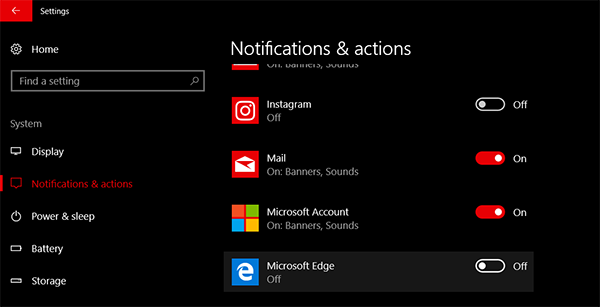
- Click on Start > Settings to enter the Windows 10 native settings (or press Windows Key + I ).
- Tap on Device > Choose “Notifications & actions“.
- Scroll down to see the “Microsoft Edge.”
- Click on it to see the advanced options, or you can turn off the toggle button.
These are the best ways to stop websites from asking to show notifications and relax while enjoying your browsing. If you ever want to revert, just follow the steps backward.
Do these 3 things before closing this tab:
1Repair Windows errors before they cause bigger problems2Fix the driver behind crashes, sound loss and screen glitches3Clear out junk files and repair common Windows errorsQuick Recap
Product prices and availability are accurate as of the date/time indicated and are subject to change. Any price and availability information displayed on Amazon at the time of purchase will apply.
Independent reader supportYour contribution helps us test, update, and keep practical guides available for everyone.
